Online Keyboard Shortcuts
Master every essential keyboard shortcut for Windows, MacOS, and Linux to automate your workflow and eliminate mouse dependency.
Visit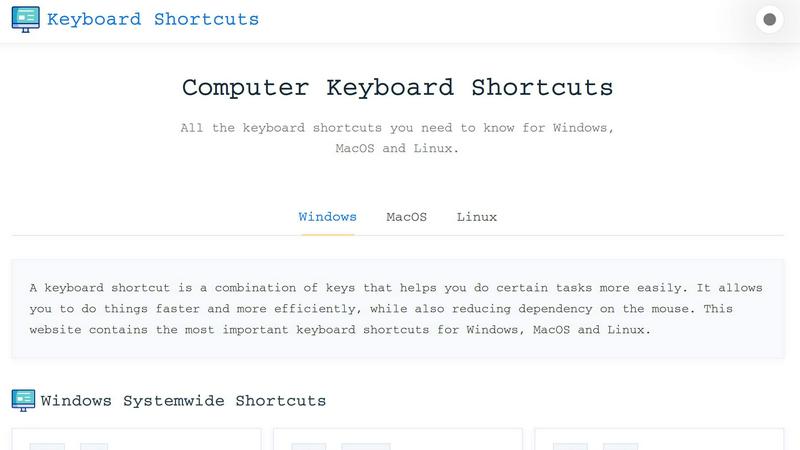
Online Keyboard Shortcuts, available at OnlineShortcuts.com, is a streamlined, no-nonsense reference resource designed to eliminate mouse dependency and accelerate your workflow across Windows, MacOS, and Linux operating systems. This tool serves as a centralized database of the most essential keyboard combinations that allow users to execute common tasks with minimal keystrokes. Instead of navigating through menus or searching for buttons, users can instantly close windows, switch applications, manage virtual desktops, edit text, and control web browsers using pre-defined hotkeys. The product is built for efficiency, targeting professionals, developers, writers, designers, and anyone who spends significant time at a computer and wants to reduce repetitive movements. The core value proposition is simple: provide a clean, distraction-free list of shortcuts that are immediately actionable. The website organizes shortcuts into logical categories including system-wide commands, operating system specific keys like the Windows key, and application-specific shortcuts for Command Prompt, File Explorer, text editing, virtual desktops, and web browsers. Additionally, users can download the entire shortcut library as a PDF or PNG cheatsheet for offline reference. The interface is responsive, working seamlessly on mobile, tablet, and desktop devices. There are no ads, upsells, or tracking spyware, making it a purely functional tool focused on user productivity. The FAQ section, while humorously self-aware, confirms the site is regularly maintained and encourages user feedback. Overall, Online Keyboard Shortcuts is a practical automation resource that helps users work faster, smarter, and with less friction.
Features of Online Keyboard Shortcuts
Comprehensive Cross-Platform Coverage
The tool provides an exhaustive list of keyboard shortcuts for three major operating systems: Windows, MacOS, and Linux. For Windows alone, it covers system-wide shortcuts like Alt+F4 to close windows, Win+L to lock the screen, and Win+Shift+S for screenshots. It also includes Windows Key specific shortcuts such as Win+E to open File Explorer, Win+V for clipboard history, and Win+Z for Snap Layouts. MacOS and Linux users get equivalent command sets tailored to their environments. This cross-platform approach ensures that regardless of your operating system, you have immediate access to the most efficient key combinations without needing to memorize or search elsewhere. The shortcuts are curated to be accurate for current software versions, with a commitment to update as needed.
Application-Specific Shortcut Libraries
Beyond system-wide commands, the product dives deep into application-specific shortcuts for commonly used tools. For Command Prompt, users get Ctrl+C and Ctrl+V for copy/paste, plus F7 to view command history. File Explorer shortcuts include Alt+Enter to display properties, Alt+P to toggle the preview pane, and Ctrl+Shift+N to create a new folder. Text editing shortcuts cover essential formatting like Ctrl+B for bold, Ctrl+I for italicize, Ctrl+U for underline, and navigation commands like Ctrl+F for find and Ctrl+H for find and replace. Web browser shortcuts include Ctrl+T for new tabs, Ctrl+W to close tabs, Ctrl+Shift+T to reopen closed tabs, and Ctrl+L to select the address bar. This granularity means users can optimize their workflow within specific applications without context switching.
Downloadable Cheatsheet Resources
All keyboard shortcuts are available for offline access through downloadable PDF and PNG files. Users can choose between a dark mode PNG, a light mode PNG, or a PDF version of the complete shortcut library. This feature is particularly useful for users who want to print the shortcuts, pin them to a wall, or reference them without an internet connection. The cheatsheets are designed to be clean and readable, ensuring that even complex shortcut combinations are easy to find at a glance. The download process is instant and free, with no email sign-up or registration required. This aligns with the product’s philosophy of providing frictionless access to productivity tools.
Fully Responsive and Ad-Free Design
The website is built to be accessible across all devices, including mobile phones, tablets, and desktop computers. The layout automatically adjusts to screen size, ensuring that shortcut tables and lists remain readable and navigable on smaller screens. There are no advertisements, upsells, or third-party tracking scripts, making the experience clean and focused purely on the content. The FAQ section humorously addresses common questions, confirming that users can request new software additions simply by thinking about them (with the site mentally receiving the message). The entire platform is 100% free software, emphasizing a user-first approach without any commercial distractions. This design choice ensures that users can quickly find the shortcut they need without being interrupted by pop-ups or paywalls.
Use Cases of Online Keyboard Shortcuts
Accelerating Daily Computer Navigation
Professionals who spend long hours at a computer can use this tool to drastically reduce the time spent on routine navigation tasks. For example, a project manager switching between multiple open applications can use Alt+Tab to cycle through windows instantly instead of clicking on taskbar icons. Locking the screen with Win+L when stepping away from the desk takes less than a second, improving security without interrupting workflow. Opening Quick Settings with Win+A or accessing the Start Menu with Ctrl+Esc becomes muscle memory, eliminating the need to reach for the mouse. By internalizing these system-wide shortcuts, users can maintain focus and flow state, reducing cognitive load and physical strain from repetitive mouse movements. The tool serves as both a learning resource and a quick reference for these daily efficiency gains.
Streamlining File and Folder Management
For users who regularly organize files, such as administrators, developers, or content creators, the File Explorer shortcuts are invaluable. Creating a new folder with Ctrl+Shift+N is significantly faster than right-clicking and selecting New Folder. Renaming a selected item with F2 allows for rapid batch renaming without double-clicking. Navigating back to a previous folder with Alt+Left arrow eliminates the need to find the back button. Displaying properties with Alt+Enter provides instant file details. These shortcuts compound over time, saving minutes per hour for users who manage large directory structures. The tool provides a centralized reference for these commands, making it easy to learn and practice them until they become automatic.
Enhancing Text and Document Editing Efficiency
Writers, editors, and data entry specialists can leverage the text editing shortcuts to speed up their work dramatically. Selecting all text with Ctrl+A, bolding with Ctrl+B, italicizing with Ctrl+I, and underlining with Ctrl+U are foundational for formatting documents without touching the toolbar. The find and replace functionality with Ctrl+H is essential for editing large volumes of text. Undo (Ctrl+Z) and redo (Ctrl+Y) provide a safety net for experimentation. These shortcuts are universal across most text editors, word processors, and code editors, making the tool relevant for a wide audience. By referencing Online Keyboard Shortcuts, users can quickly confirm the correct key combinations and integrate them into their daily typing habits, leading to faster document creation and revision cycles.
Optimizing Web Browsing and Research Workflows
For anyone who spends time browsing the internet, the web browser shortcuts listed in the tool can transform the browsing experience. Opening new tabs with Ctrl+T, closing them with Ctrl+W, and reopening closed tabs with Ctrl+Shift+T are essential for tab management. Switching between tabs with Ctrl+Tab allows for rapid navigation without clicking. Selecting the address bar with Ctrl+L enables instant URL entry or searching. Refreshing a page with Ctrl+R is faster than clicking the refresh button. These shortcuts are consistent across major browsers like Chrome, Firefox, Edge, and Safari. Researchers, students, and knowledge workers can use this tool to learn these shortcuts, reducing the time spent on browser navigation and allowing more focus on content consumption and analysis.
Frequently Asked Questions
What is Computer Keyboard Shortcuts?
Computer Keyboard Shortcuts is a comprehensive guide to keyboard shortcuts for a wide variety of software applications. It is designed to help users improve their productivity by providing quick and easy access to commonly used commands and hotkeys. The guide covers system-wide shortcuts for Windows, MacOS, and Linux, as well as application-specific shortcuts for tools like Command Prompt, File Explorer, text editors, and web browsers. The goal is to reduce dependency on the mouse and enable faster task execution through key combinations.
How do I use Computer Keyboard Shortcuts?
Browse the list of shortcuts and find the one you need. You will figure it out. The shortcuts are organized by category, making it easy to locate system-wide commands, Windows Key shortcuts, or application-specific hotkeys. You can also download the entire list as a PDF or PNG cheatsheet for offline reference. Simply press the indicated key combination on your keyboard to execute the corresponding action in the appropriate application or operating system context.
Can I request a new software to be added?
Yes, users are encouraged to request new software. You can do that by thinking of a keyboard shortcut really hard and the site will mentally receive your message. In all seriousness, the site is open to user feedback and suggestions for expanding the shortcut library. While the process is humorously described, the underlying message is that the developers are receptive to adding new applications based on user demand.
How accurate are the keyboard shortcuts?
The shortcuts are curated to be as accurate as possible for the specified software versions. However, software updates can sometimes change hotkeys, so it is always good practice to verify with the specific version you are running. The site aims to keep the information up to date, but users should cross-reference with their current software environment if they encounter any discrepancies. The FAQ acknowledges that updates may not be frequent, but the core shortcuts remain stable across major versions.
You may also like:

Product Launch Checklist
A free launch checklist for SaaS, apps, AI tools and more. Every step says why it matters and when you can skip it.

Wisegrid
Wisegrid is a spreadsheet-native work management platform for project-driven teams

Luffy
Luffy is an AI employee in Slack that remembers your workspace and executes tasks across every app
Boost Your Growth
Submit your SaaS to 140+ directories and SaaS submission sites. We handle every listing so you can focus on building your product.